
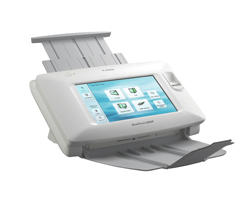
Latest Canon ScanFront Scanners 
Overview
Tips
Ultrasonic sensor
Fingerprint scanner
Macro buttons
Duplex scanning
Programming
Linux
File types
Sending files
Maintenance
Specs
Where to use
Where to buy
Afraid of paperless?
Advantages not found in other scanners. The most important advantage over other scanners is that the ScanFront 220P & 220 network scanners will quickly scan searchable PDFs from the scanner’s computer instead of from software on your computer which is slow and can slow other software you may be using at the same time. If you need to create searchable PDF’s, the ScanFront 220 is for you.
The ScanFront 220P & 220 has a monitor screen on which you can create buttons to scan documents in different types of file formats and resolutions. Additionally, since the scanner is networkable, you can create one-touch buttons to send files to different folders and different computers. For instance, you can create a button for B&W single-sided; B&W double sided; color single-sided; color double-sided, in PDF or JPEG and automatically send them to whichever folder or computer you want. The buttons are very easy to set up. I only have one computer so I don’t need the network function but I have 10 buttons set up and it makes it very quick and easy to scan documents. See on-screen buttons below.
Overview. The Canon ScanFront 220P medium/high-volume network, duplex, color document scanner is simply fantastic. Just like every one of Canon products, from copy machines to cameras, this high speed document scanner is simply the best. I finally decided to make my office as paperless as possible and got a ScanFront 220P document scanner. I love it! On my first day using the scanner, I scanned hundreds of papers which I promptly threw out or shredded, emptying 1/2 file drawer. I’ve been scanning a few file folders every day and now have more space, less clutter on my desk and everywhere else, and greater security. It’s easy to set up, easy-to-use, easy to maintain yourself, works great and does everything a large or small office needs.
Canon makes two document scanners in the 220 line, the 220 and the 220P. Both scanners are designed for use in a large office with high-volume document management and scanning needs. Its design easily allows use of multiple scanners in various locations throughout an office and/or multiple offices. These document scanners can be used by individuals or shared by groups.
The difference between the two scanners is that the 220P and has a fingerprint scanner and an ultrasonic sensor for detecting and stopping double page feeds. The ultrasonic sensor is worth the extra price over the 220 and is my reason for recommending the 220P.
The MSRP for the 220P is $2,195, but like most items you can find it online for a lot less. Don’t let the price stop you. While this scanner has some outstanding features, that you will not find in less expensive scanners, creating searchable PDFs from scanner hardware, the on-screen macro buttons, and the ultrasonic sensor are essential features that make the 220P the clear choice for a small office.
My law office is a solo practice and I do not need the fingerprint scanner and other security features, but as you will see below, the other features designed for high-volume scanning are essential for document management in even a small office.
Tips
Browser: The programming and scanning options can be selected from either the scanner’s screen or from your computer’s web browser using Internet Explorer. The the Canon ScanFront 220/220P was not designed to be programed with Firefox. However, it can be set up to work with with Firefox. See the instructions at Using the Canon ScanFront 220/220P with Firefox.
Password: If your password does not work while trying to log in to the scanning options using your browser, make sure you are using Internet Explorer and not Firefox.
Ultrasonic sensor. My Canon copy machine never grabs more than one page at a time, but standalone scanners are substantially smaller with fewer rollers and are more susceptible to grabbing more than one page at a time. The ultrasonic sensor is a feature you must have. When you’re quickly scanning a large number of documents, you don’t want to find at a later date that some pages were grabbed at the same time and not scanned.
On my first day of scanning, I decided to scan and throw out some files containing various bills for the last few years. I scanned several hundred papers and only encountered double feeding twice. The ultrasonic sensor immediately stopped the automatic scanning, warned me and presented me with three options. I stopped the scanning, fanned the papers, re-scanned and finished without missing a page. The ultrasonic sensor bounces sound waves between the papers to determine if more then one page is being grabbed. This method is extremely effective and is simply a necessity for headache free scanning. Additionally, the scanner software has an additional feature to detect double-page feeding by checking the page length, which can be turned on or off.
User password/Fingerprint scanner. The 220/220P can require the user to enter a password with the on-screen keyboard and for high security, different users can be set to have different privileges. The 220P also has a fingerprint scanner which can be used instead of entering a password for quick and easy user logon. The scanners have very sophisticated levels of variable security for many users, which will be reviewed in detail soon.
On-screen Macro buttons. You can easily create up to 1,056 multiple on-screen buttons to provide simple mindless one touch scanning that the most inept office staff can use with the 8.5 inch color touch screen. A different set of on-screen buttons can be created for each user. The on-screen buttons can be created in various colors and are labeled.
These buttons are simply macros which you can set up for different types of scanning, such as black and white, gray scale or color and at various resolutions. I have buttons set up as follows: B&W 300 dpi; B&W 600 dpi; B&W Duplex 300 dpi; Color 150 dpi; and Color Duplex 150 dpi. I scan most text documents at B&W 300 dpi and use B&W 600 dpi for documents which have light text or documents for which I want to keep a better quality copy. The other buttons I use for color and duplex scanning.
Without using one touch on-screen buttons, I would have to go to my computer and spend some time setting up the scanner software to import the documents at the desired color and resolution. The on-screen buttons allow me to scan any type of document in different ways without having to go to my computer and set up the scanner software each time I scan a document. The on-screen buttons make scanning extremely easy and a considerable time saver.
On-screen buttons can also be created to send scanned documents to various locations with just one touch. For instance, one button can send scanned documents to your computer and another button can be set to send scanned documents to a particular e-mail address. I frequently send medical records to a doctor who works for me. Now, I can press one button to scan the documents and instantly e-mail the scanned file to the doctor.
If you know what you are doing, you might not need these on-screen buttons, but they save a lot of time and make it real easy. It’s like power windows. You don’t really want to go back to manual windows in your car. I like putting the paper in the tray, pressing one button and it’s done. For office staff that is slightly less tech savvy, these buttons make scanning foolproof and therefore, a necessity.
Duplex scanning. Two scanners are used to allow single pass scanning of both sides of the paper at the same time! Another great feature, this allows for very fast scanning of double-sided documents; much increased reliability without any jamming since the paper does not have to travel through many rollers and paths; and decreased maintenance since there are fewer rubber rollers to dry out and need replacement.
Programming. Programming and scanning options can be selected from either the scanner’s screen which has a very nice GUI (graphical user interface, like your computer’s desktop) and on-screen keyboard, or from your computer’s web browser with IE but does not work well with Firefox. It’s easy to enter commands using the scanner’s screen, but I like using the browser on my computer. To use your computer’s browser, simply type in the IP address of the scanner in the browser’s address bar.
If you have a large office with several scanners, entering commands from your browser allows you or your administrator to add or delete users, add or delete on-screen macro buttons and perform other programming options for all scanners from any computer on the network.
Linux compatibility. The scanner’s web interface is designed to be used only with Internet Explorer 6 or above. However, there are two solutions.
1) To use the web interface on a Linux computer use Internet Explorer running in Wine or Crossover Office.
The on-screen GUI should be independent of Windows, since the scanner is computer independent, meaning that it does not have to be connected to a computer to work.
The scanner probably has to communicate with Windows to send scanned documents to a shared folder, so with Linux you would just turn on Samba to create Windows shared folders and it should work.
2) You can use a free script someone kindly wrote which works with Greasemonkey
File Types & File Names. Scanned files can be named in a variety of methods. Default filenames can be assigned for each onscreen macro button. Additionally, filenames can include the date scanned in the formats: yyyymmdd; mmddyyyy; ddmmyyyy. Files can be scanned in either PDF, JPEG, or TIF formats in B&W, grayscale, or color with a wide selection of resolutions (up to 600 dpi) and compressions. OCR can be selected for scanned files in eight different languages. If security is an issue, scanned files can be encrypted.
File delivery options. Scanned files can be sent to any shared file on any computer; sent by e-mail to any e-mail address; to FTP; USB memory; and to a projector. If you frequently send scanned files using the same delivery method, you can easily set up an on-screen user macro button for one touch scanning. I set up several macro buttons for different types of scanning to certain destinations. For instance, I created one on-screen macro button for B&W scanning at 300 dpi to a folder on my computer; another for B&W at 600 dpi to the same folder; another for color at 150 dpi; and another for B&W at 300 dpi which sends the scanned files by e-mail to a doctor who reviews medical records for me.
Maintenance. Another truly fabulous feature is that the 220 and 220P scanners have only one rubber roller that gets replaced. The roller lasts 30,000 scans and is very simple to replace by an equipment phobic in less than 30 seconds. If you can replace a battery, you can replace the roller. This is one machine that you won’t have to buy a maintenance contract for.
It’s easy to replace the Canon 220/220P document scanner roller
Open the cover using the latch (1) to reveal the roller with
the access door door closed (2).
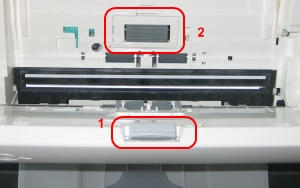
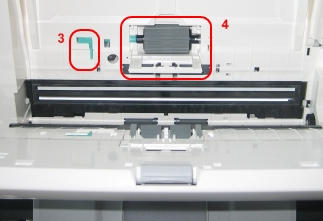
Lift the roller access door to open (4),
Lift up the green tab (3) to release the roller,
Pull out the roller (4), replace with the new one and close.
That’s it, you’re done!
- Scan speeds up to 26 pages per minute.
-
Scan up to 40lb bond paper and will scan as small as business cards with up to 110lb cover stock.
-
Document size from business card up to 8.5×14 (2.00-8.5 width and 2.76-14.00 length).
-
Document feeder can handle up to 50 sheets of ordinary paper
-
Output Resolutions: 100 x 100dpi, 150 x 150dpi, 200 x 200dpi, 300 x 300dpi, 400 x 400dpi, 600 x 600dpi.
-
Colors: Black & White, Gray scale 8 bit (256 levels), Color 24 bit.
-
512 MB memory to improve processing programs & images.
- 8.5 inch TFT Liquid Crystal Display with Touch Panel Screen
-
Two USB 2.0 ports (for USB memory devices, USB keyboard and USB mouse).
-
Two PS/2 ports, one for a keyboard and one for a mouse.
-
Scanning can be controlled from either the on-screen touch display or from the software interface on your computer.
-
Duty Cycle 1,000 sheets per day.
-
Consumable: exchange roller 2445B001AA every 30,000 sheets.
-
Compact design – 12.2” x 9.21” footprint & 7.5 lbs.
Where to use. You can use just one scanner in a small office or several scanners in different locations for a large office. You can also keep one at home which you can use to keep your home from being cluttered with papers and receipts and if you do any work at home, you can send files to a folder on your office computer via a VPN or send to your office by e-mail.
Where to buy. You can buy the Canon 220 and the 220P from independent resellers or a Canon authorized reseller. If you buy from a Canon authorized reseller, you will get telephone support. This can be useful when connecting to your computer network. Just as with a printer, the scanner can be connected to your network using DHCP which is extremely easy to do without support, but sometimes DHCP does not work. For some reason, when I tried to connect a laser printer to my computer through a network, DHCP did not work and I had to assign a static IP address to the printer. The same thing happened with the scanner. Assigning a static IP can be a little more difficult, but is easy to do with telephone support. Using a static IP instead of DHCP is a more reliable method anyway.
Afraid of becoming a paperless office?
For those lawyers who have thought about becoming a paperless office but are afraid that they could lose important documents because of a computer virus, hard drive failure or motherboard failure, consider the fact that scanning your documents will provide you with far greater security.
First of all, you can always keep your paper files, but scanning documents will provide you with substantially better security. With paper files, I always worried about a fire. Now, that I scan every document, I no longer have to worry.
When I scan a document, it is backed up every day to an internal hard drive and once per week to an external hard drive. Every few months, I back up to DVD which I keep in a safe deposit box. Most importantly, my computer is set to automatically back up online every day to an off-site computer server at a company which also backs up the data. Online back up service used to be expensive, but with the size of hard drives increasing and the cost of storage crashing, automatic online backups are now extremely inexpensive.
The company I use provides unlimited backup storage for only $5 per month with e-mail support or telephone support with the Pro online backup service for only another $5-$10 or slightly more if you need a tremendous amount of storage. With inexpensive automatic online backup, becoming a paperless office is far more secure than maintaining your old paper files.
I highly recommend the Canon ScanFront 220P and can honestly say that this is the most important piece of equipment I have besides my computer itself. For the first time, I am able to clean up paper clutter at home and in my office, easily search for and find documents I need, and feel secure knowing that all my documents are backed up both on-site and off-site. I started using a computer at home for the first time in 1989 and have an advanced computer with multiple hard drives and a 30 inch monitor, but my document management remained in the dark ages until now. It’s time to update your document management!
See the current line of imageFORMULA ScanFront scanners and start managing your documents today.
Philip L. Franckel, Esq.
HURT911®